Guide · SOCMultiPoE
SOCMultiPoE: run several game windows
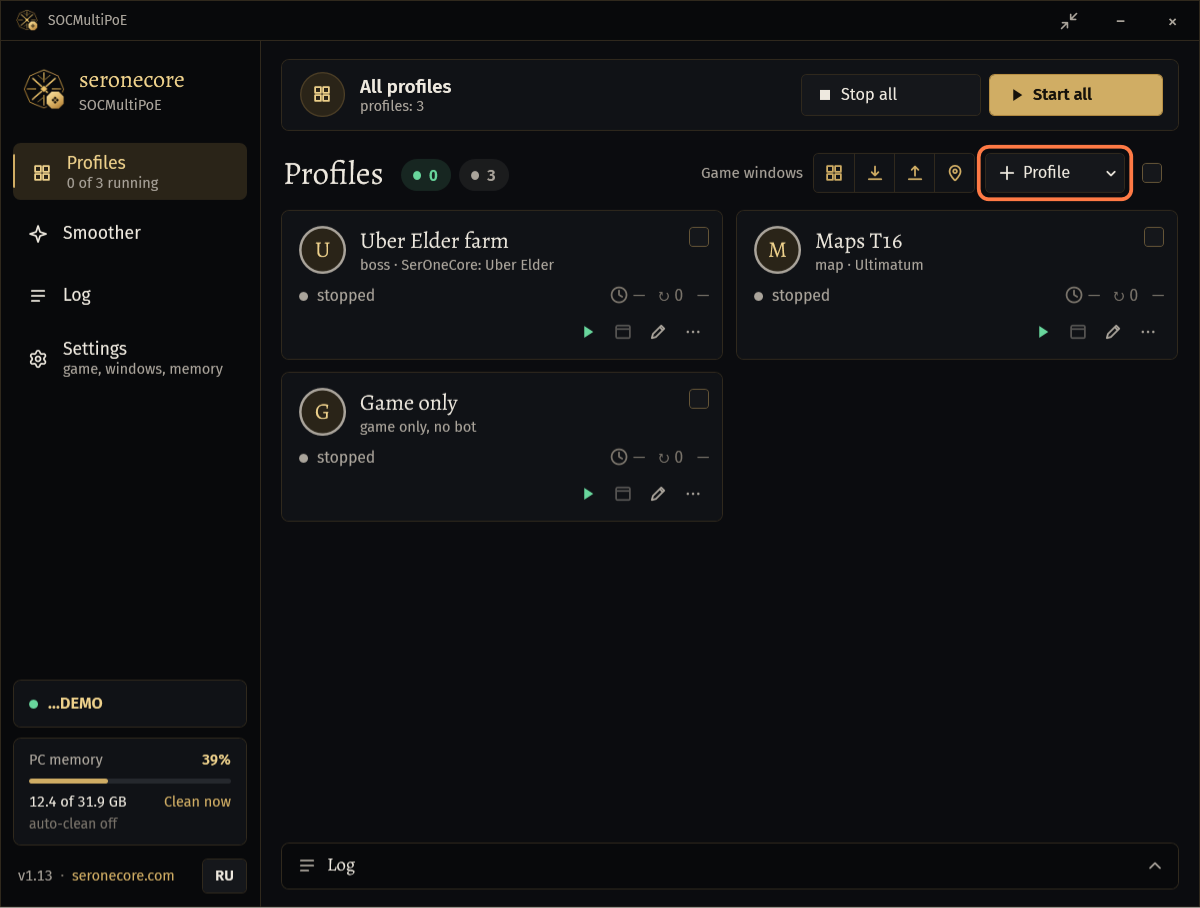
SOCMultiPoE is a launcher for several game copies on one PC. Each profile is one copy of Path of Exile with its own seronebot settings. The launcher starts the copies one after another, starts them again after a crash and puts their windows in order.
Who needs it
You need SOCMultiPoE when you farm with several accounts at once on one PC. With one game and one bot, seronebot alone is enough.
Check that your seronecore key has SOCMultiPoE for the current league.
- The launcher checks the key when it starts. The check does not spend key time.
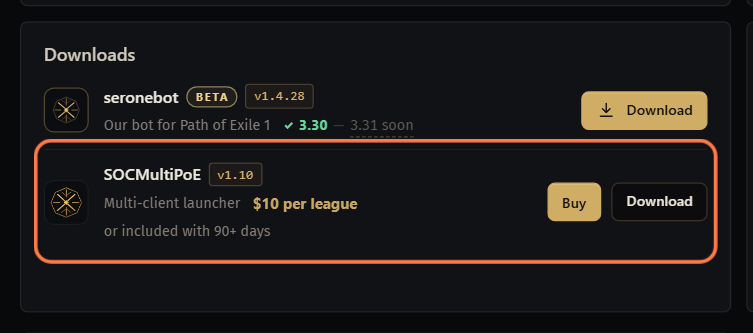
Download SOCMultiPoE on the seronecore.com dashboard: Overview, card Downloads, row SOCMultiPoE. The row shows whether you have it and how to get it.
Keep one seronebot.exe on the PC. All profiles use the same file.
- seronebot works with Path of Exile 1 only.
Set every game copy to Windowed mode: in the game, Options → Graphics → Display Mode → Windowed.
Important: In full screen the launcher cannot size the game window, and the bot's clicks miss.
Each game copy takes several GB of memory. The profile cards show how much each copy uses.
First start
2 minutesStart SOCMultiPoE.exe and click Yes when Windows asks for administrator rights.
- Without the rights the launcher stops with SOCMultiPoE requires administrator privileges.
Paste your seronecore key into License key and click Activate →.
- Next time the saved key is checked by itself.
Click Settings in the left menu.
Check the path in Game (PathOfExile.exe):. If it is empty or wrong, click Browse... and choose
PathOfExile.exe(Steam:PathOfExileSteam.exe).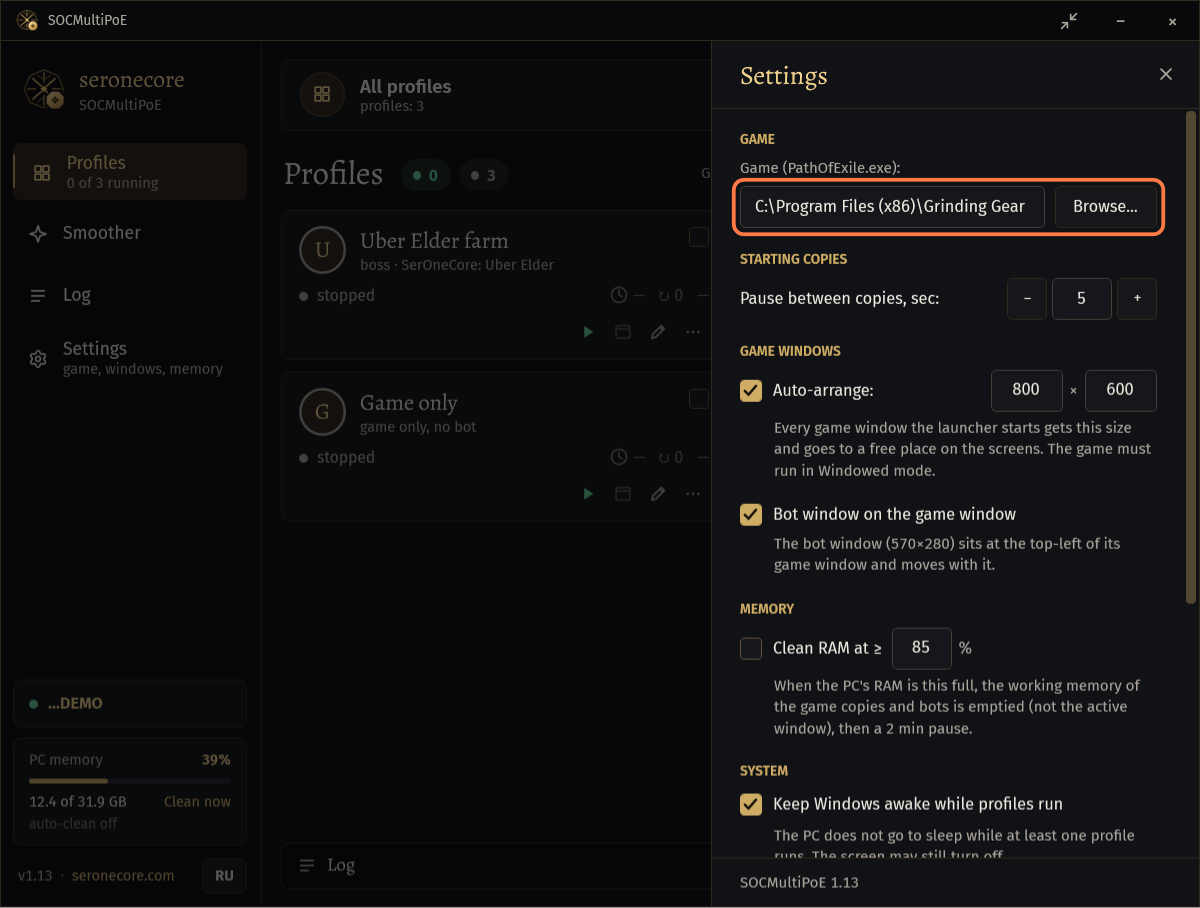
- The launcher looks for the game by itself: a running copy, the folder of the standalone client, the usual Steam folder.
Close the panel with ×. The settings are saved.
The RU button at the bottom of the left menu switches the window to Russian.
Create a profile
A profile is one game copy and its bot, usually one account. Make one profile per account.
On Profiles, click + Profile and choose New profile….
Type a name in Name (account or character):.
Next to Bot program, seronebot.exe (empty = game only): click Browse... and choose your
seronebot.exe.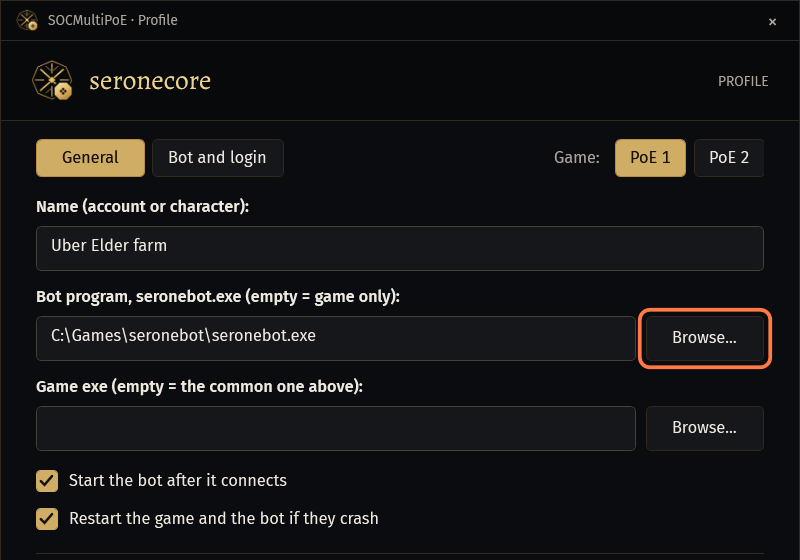
- All profiles can use the same seronebot.exe. Each profile gets its own folder for seronebot's settings and logs; the line at the bottom of the tab shows where.
- Leave the field empty for a game copy without a bot.
Leave Game exe (empty = the common one above): empty. The profile then uses the game from Settings.
Keep Start the bot after it connects and Restart the game and the bot if they crash ticked.
Open the Bot and login tab.
In SerOneCore profile: choose the bot settings this copy runs with.
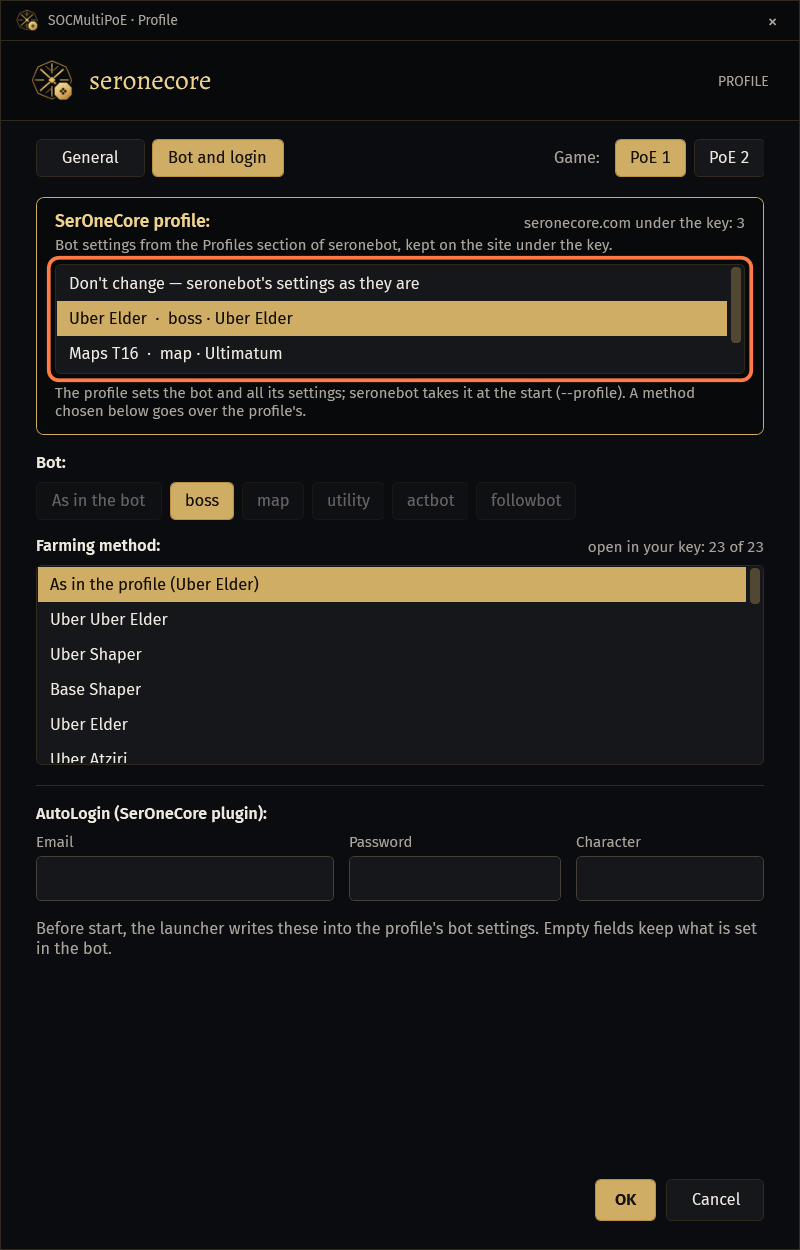
- The list shows the profiles you saved in the Profiles section of seronebot. They are kept on seronecore.com under your key.
- Don't change — seronebot's settings as they are keeps the settings already in this profile's folder.
Or leave the SerOneCore profile alone and choose Bot: and Farming method:.
- With a SerOneCore profile the bot is the profile's. A method chosen here goes over the profile's method; As in the profile keeps it.
Optional: fill Email, Password and Character under AutoLogin (SerOneCore plugin): for this account.
- The launcher keeps the password encrypted for your Windows user. Empty fields keep what is set in the bot.
Click OK.
Before each start the launcher writes the bot, the method, your key and the AutoLogin into the profile's seronebot settings, so you do not enter the key in seronebot. For the next account, click ⋯ (More) on the card and choose Duplicate profile: the bot program, bot, method and SerOneCore profile are copied, the AutoLogin and window positions are not.
Start and stop
Click Start all.
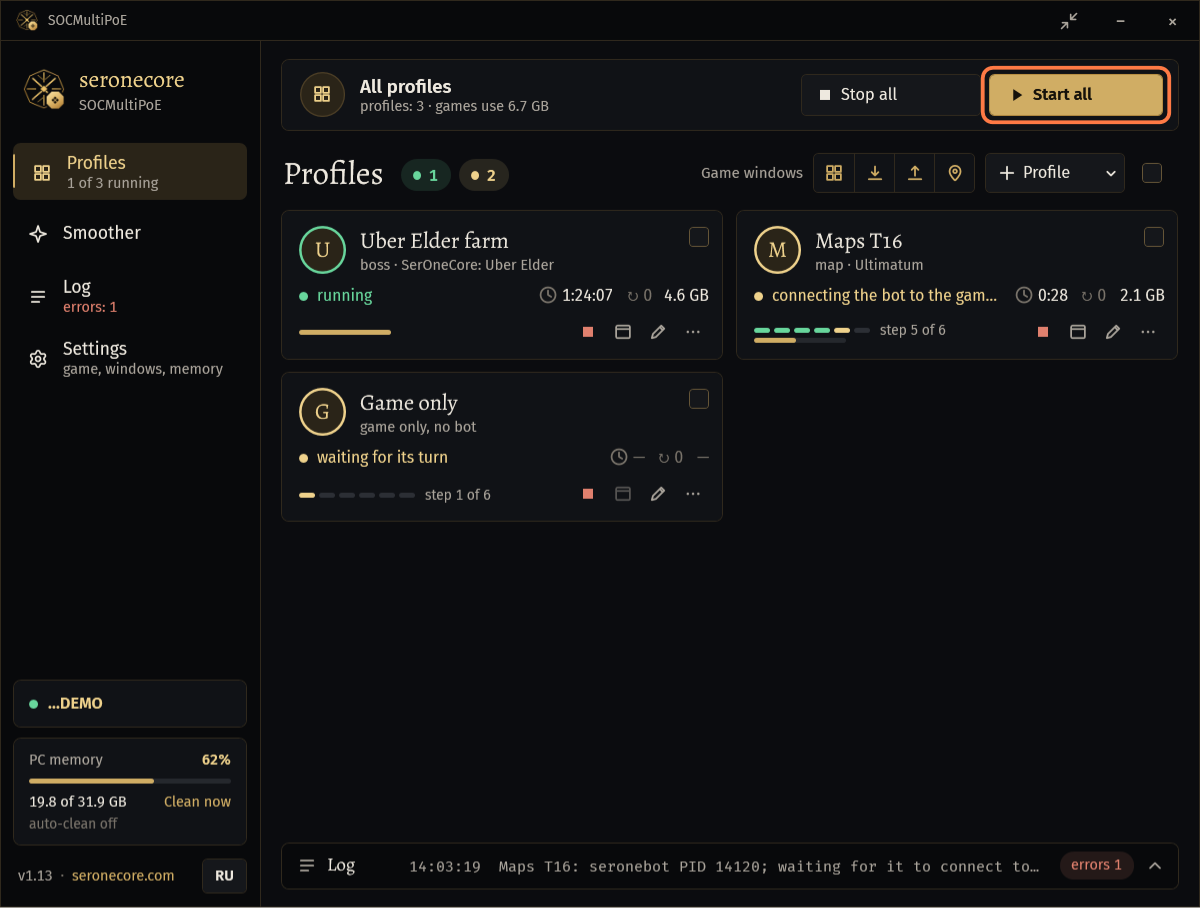
- The copies start one after another, with Pause between copies, sec: (5 by default) between them.
- Each card shows its step: waiting for its turn, starting the game..., waiting for the game window..., starting the bot..., connecting the bot to the game..., pressing Start in the bot..., then running.
To start or stop one profile, click ▶ or ■ on its card.
To act on some profiles only, tick their cards and click Start or Stop at the top. Clear selection removes the ticks.
Click Stop all to close the games and bots of all profiles.
With Restart the game and the bot if they crash ticked, a game or bot that closes or crashes is started again. A game that does not respond for 5 minutes is closed and started again. After 5 crashes in 30 minutes the profile stops trying and shows too many crashes, stopped watching; click restart under the card when the cause is fixed. Closing SOCMultiPoE does not close the games and bots: when it opens again, it picks up the profiles whose game and bot still run. Minimized, the window goes to the tray; right-click the tray icon for Open, Start all, Stop all, Show game windows and Exit.
Arrange the game windows
Every game window the launcher starts gets the Auto-arrange: size (800 × 600 by default) and goes to a free place on the screens, without covering other game windows.
To change the size, open Settings and set the width and height next to Auto-arrange:.
Keep Bot window on the game window ticked. The seronebot window then stays at the top-left corner of its game window and moves with it.
- seronebot keeps its own window size.
Use the four buttons next to Game windows above the cards. Hover a button to see its name.

- Arrange grid (four squares): all game windows side by side at the auto-arrange size, profiles in their order, the main monitor first.
- Minimize all (arrow down) and Show all (arrow up): the game and bot windows of all profiles.
- Save positions (pin): remembers where the game and bot windows of the running profiles are now. They go back there on every start.
To bring one profile's windows to the front, click the window button on its card (Show the game and bot windows).
To drop the saved positions of a profile, click ⋯ (More) on its card and choose Forget window positions.
When the windows do not fit on the screens, the rest are put over the others with an offset, and the log says so. Use a smaller size or another monitor.
Smoother
Smoother in the left menu opens its own page. The profiles keep running while any page is open. While Smoother is on, the menu shows on under its name. Smoother does not need a key.
Click Smoother in the left menu and follow its page.
Free memory
The PC memory card at the bottom of the left menu shows how full the PC's memory is. Each card shows the memory of its own game copy.
Click Clean now on the PC memory card.
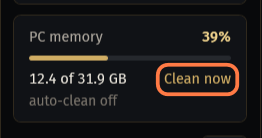
- It empties the working memory of all game copies and the profiles' bots at once. A copy can stutter for a moment.
To clean by itself, open Settings, tick Clean RAM at ≥ and set the percent (from 50 to 99).
- It is off by default; the percent is 85.
- When the PC's memory is that full, the launcher cleans all game copies and bots except the active window and processes started less than 1 minute ago, then waits 2 minutes before the next cleaning.
The log
SOCMultiPoE writes every start, stop, restart and problem into its log. Lines about problems are red and counted.
Click the Log bar under the cards to open the last lines.
- All and Errors only filter the lines. errors N on the bar opens only the error lines.
Right-click the lines for Copy or Open log file. Ctrl+C copies the selected lines.
For the whole log, click Log in the left menu.
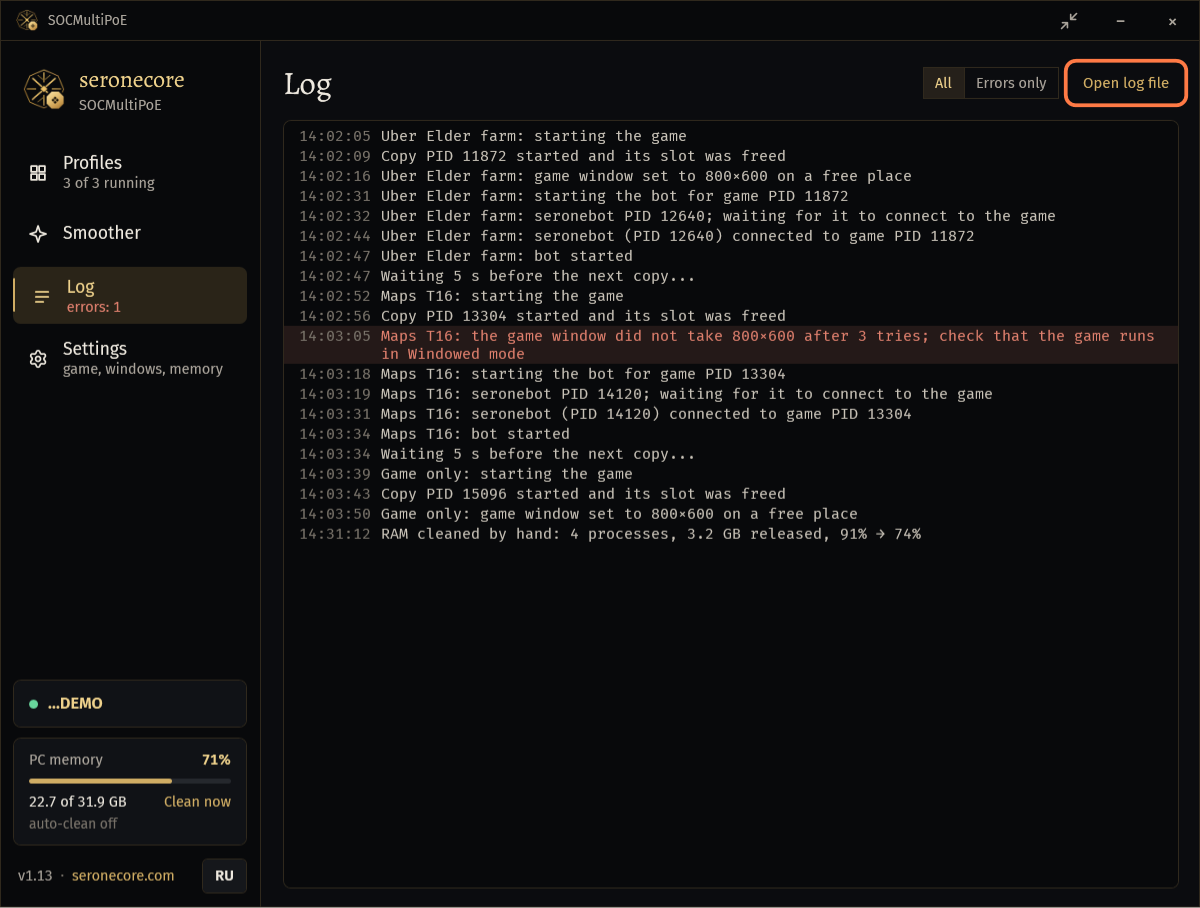
- The number of error lines shows under it: errors: N.
Click Open log file to open
SOCMultiPoE.log.- The file is
%LOCALAPPDATA%\SerOneCore\SOCMultiPoE\SOCMultiPoE.log. At 2 MB it becomesSOCMultiPoE.log.oldand a new file starts.
- The file is
The bot's own logs are in seronebot. Every profile has its own folder for them; the General tab of the profile shows where.
If something goes wrong
What you see and what to do- SOCMultiPoE requires administrator privileges. Close the app, then choose Run as administrator.
- Close SOCMultiPoE. Right-click
SOCMultiPoE.exe, choose Run as administrator and click Yes when Windows asks. - SOCMultiPoE is not unlocked for the current league.
- Your key has no SOCMultiPoE for this league. Check your key on seronecore.com, then click Activate → again.
- game exe not found
- The game path is wrong (the log says Game not found: and the path). Open Settings and choose
PathOfExile.exewith Browse..., or fix Game exe in the profile. - bot program not found
- The profile's bot program points to no file. Click the pencil on the card (Edit the profile) and choose
seronebot.exeagain with Browse.... - the game window did not take 800×600 after 3 tries; check that the game runs in Windowed mode
- In the game, set Options → Graphics → Display Mode → Windowed. Then click Arrange grid.
- closed by itself right after the start. If PoE is updating, start the game once without the launcher and let it update.
- Start Path of Exile once by itself, let it download the update, close it and start the profile again.
- too many crashes, stopped watching
- The game or the bot crashed 5 times in 30 minutes. Read the red lines in Log, fix the cause, then click restart under the card.
- running; press Start in the bot yourself
- The game and seronebot run, but the bot did not start. Start the bot in that profile's seronebot window.
- seronebot closed: another seronebot is already on this game (code 3)
- Another seronebot, for example one started by hand, is connected to that game. Close it and start the profile again.
Stuck on a step?
Ask in #support on our Discord and send your log with Copy log: it shows what the bot saw.