Guide · Settings
Auto login
Auto login logs your account in and enters the game with your character whenever the game shows the login or the character screen while a bot runs: at Start and after a disconnect or a kick. You set it once, on the Auto login tab of Settings.
Open Auto login
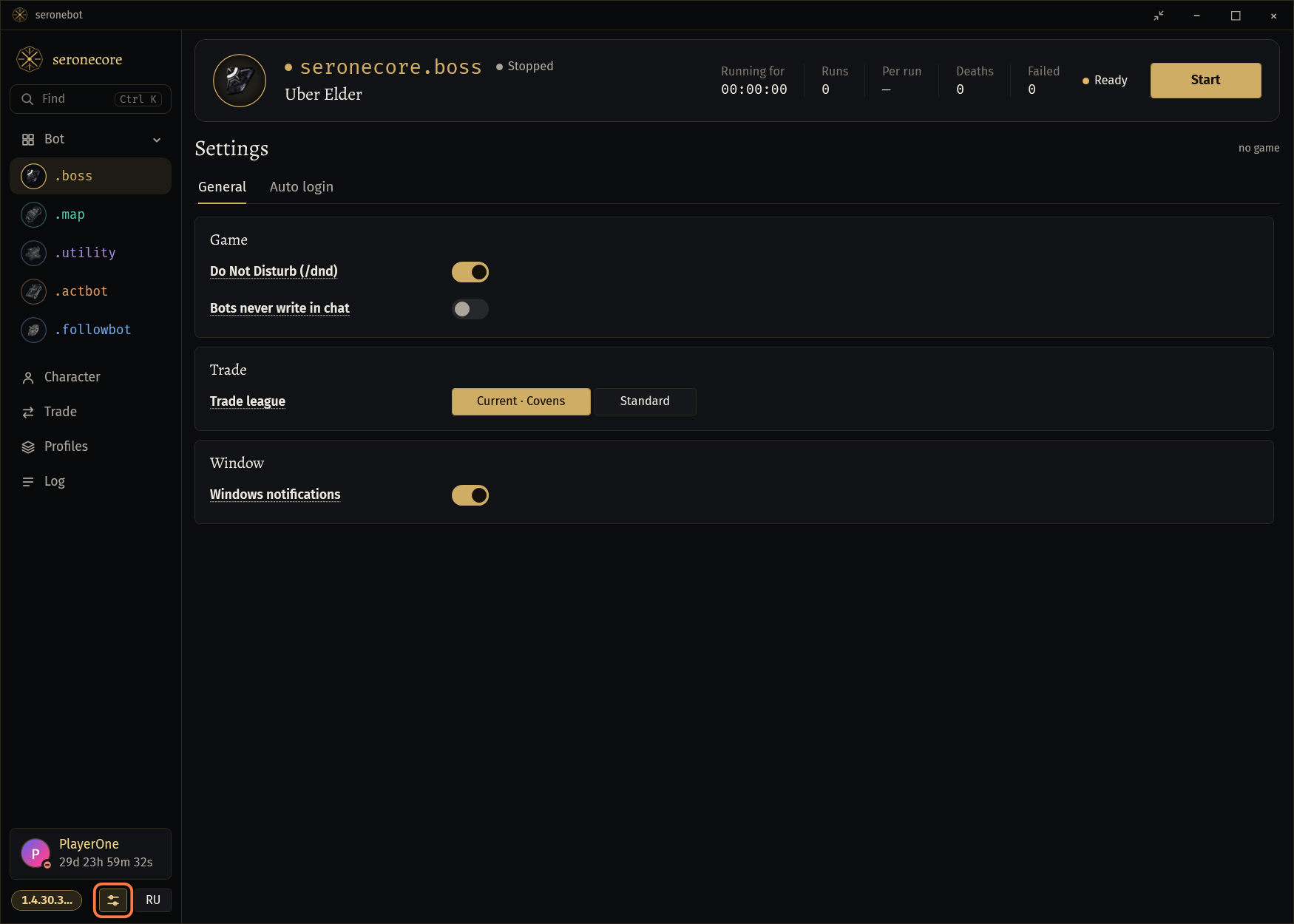
Click the gear at the bottom of the menu (Settings). In the small window the gear opens the big window first.
Click the Auto login tab, next to General.
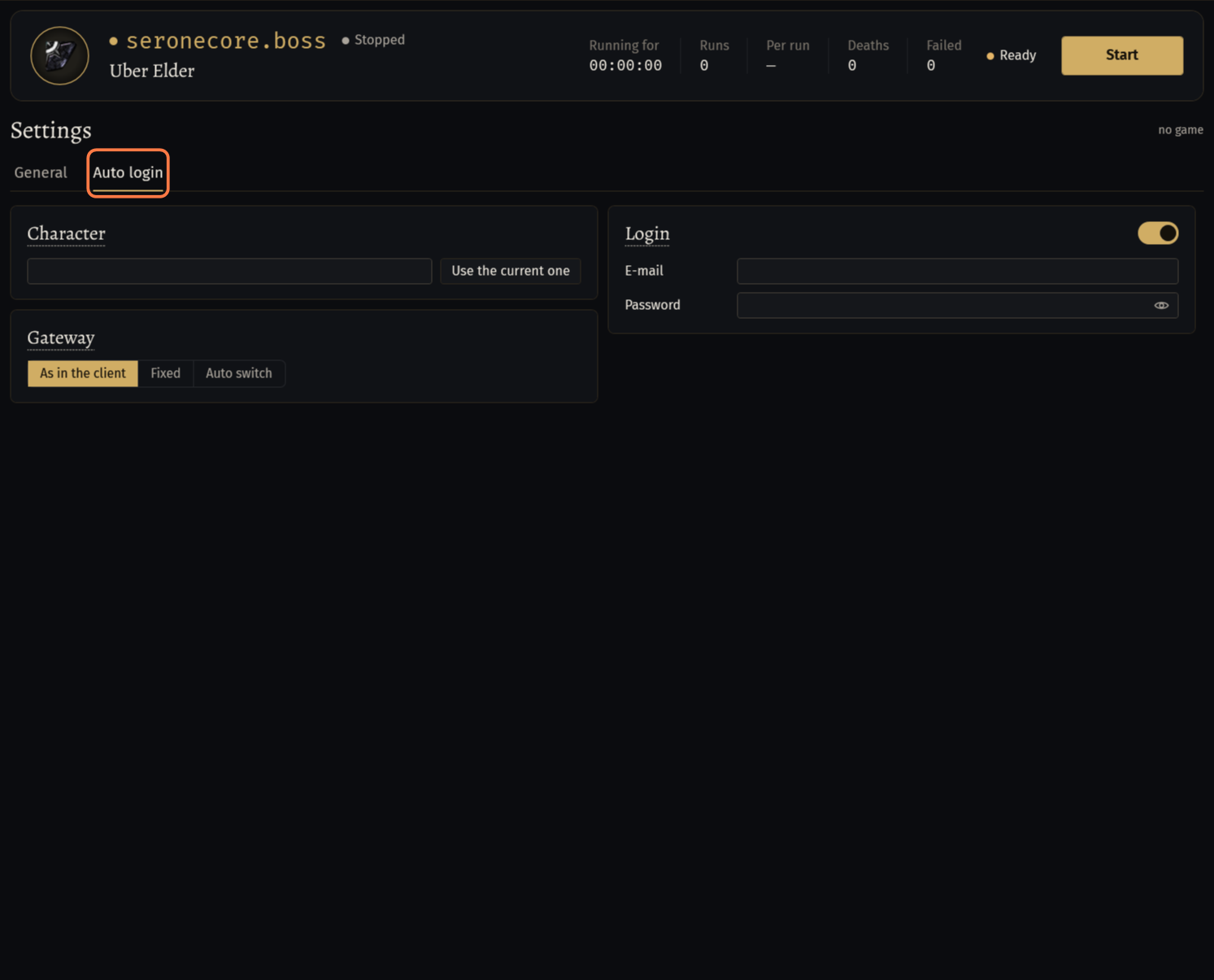
- One Auto login for every bot of this seronebot. The page saves your changes by itself.
Login: e-mail and password
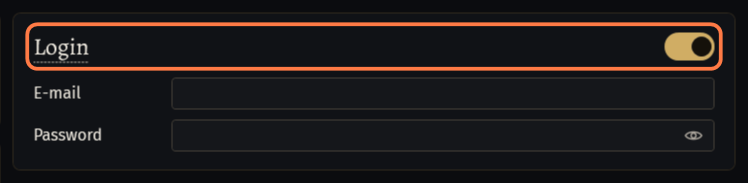
Keep Login on (it is on by default) and type the E-mail and the Password of your game account.
- The eye at the end of Password shows the password while you check it. It hides again when you leave the page.
With Login off you log in yourself. The bot then only clicks the game's log-in button with what the game keeps in its fields.
Your login stays on this PC
The e-mail and the password are kept in one file on this PC:
Settings\SerOneCore\AutoLoginSerOne.jsonin the seronebot folder.Important: The password is kept in that file as you typed it, without encryption: anyone who opens the file can read it.They are never sent to seronecore.com.
They are not in a profile, a profile code or a
.socprofilefile: a friend you share a profile with gets no login of yours. See Profiles: save, switch and share settings.The log never writes the e-mail, the password or a character's name, and a bug report hides them.
Do not send the seronebot folder, or its Settings folder, to anyone.
Important: The file keeps the password as you typed it: whoever has the file can read it.With SOCMultiPoE, fill the login of each account in its profile, tab Bot and login. The launcher writes it into this file before every start; its empty fields keep what is set here. See SOCMultiPoE: run several game windows.
The character
Type the name of the character in Character, or press Use the current one while you play that character.
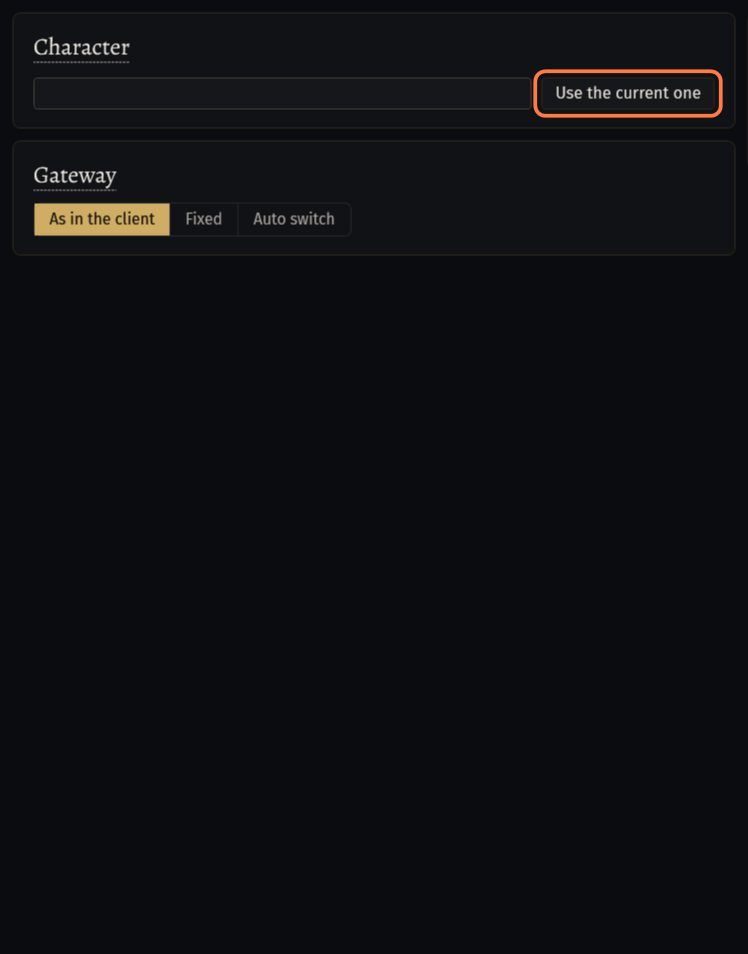
Character empty: after a relog the bot enters with the character it played before. Otherwise it presses Enter on the character selected on the screen, and if that does not start the game, it takes the first character of the list.
When Character is empty at Start in the game, the bot fills in the character it plays. Until you change the field yourself, it follows the character you start the bot with.
Logging in again after a disconnect
Auto login works while a bot runs. You can press Start on the login screen too: the bot logs in, enters the game and goes to work.
When the game drops to the login screen (a disconnect, a kick, a relog of the bot), the bot logs in again by itself.
Before each try it waits a little, longer after every try that fails: from half a second up to 5 minutes. After a login that goes through the wait is short again.
On the character screen it enters with the character of Character. After a relog in the middle of a run it takes the character it played before, unless you changed Character since.
When entering the game fails 5 times in a row, the boss, map and utility bots stop. The act bot and FollowBot try again in 2 minutes.
When the game asks for the unlock code sent to your e-mail, the bot presses nothing on the login screen: enter the code in the game window and log in once yourself. The act bot and FollowBot then go on by themselves; the other bots stop, press Start again.
The bot stops when the game says that the league has ended or that the account is banned.
Gateway
As in the client (the default): the bot logs in through the gateway chosen in the game.

Fixed: pick a gateway in the list under it, for example Frankfurt (EU). The bot sets it before every login. If the game does not take it, the bot logs in through the gateway of the client.
Auto switch: another gateway after kicks
Auto switch: the bot leaves a gateway after network kicks, logins that hang on Connecting or a high latency, and logs in through the fastest gateway it has measured, else the next one of the order. Kicks while your own internet is down do not count.
Gateway order… lists the gateways: switch off the ones never to use, move the others with the arrows. Automatic order puts the gateway of the client first, then the others of its part of the world by distance.
The limits are under Advanced: Network kicks in so many min, Logins in a row that fail, Latency over, ms, Spikes over 300 ms, %, Slower than the best, ms, A left gateway rests, h and Back to the first after, h.
- Kicks are read from the game's
logs\Client.txt, which must be next to the game's exe (the usual install).
- Kicks are read from the game's
If something goes wrong
What you see and what to doLogin: The login press answered NoCredentials. (W-BYWW)- Turn on Login on the Auto login tab and fill in E-mail and Password. With Login off you log in yourself.
Login: Entering with the character from the settings failed: CouldNotFindCharacter. (W-K53C)- Type the name exactly as the game writes it, or press Use the current one while you play that character. An empty Character takes the character selected on the screen.
Login: The game asks for the unlock code sent to the account's e-mail. ... (E-8C66)- Enter the code from your e-mail in the game window and log in once yourself. The act bot and FollowBot go on by themselves; the other bots stop, press Start again.
Login: The game draws a 1920x1080 picture squeezed into its 800x600 window, so clicks miss: put the game in Windowed mode (Options, Graphics, Display Mode), then start the bot again. ... (W-JGNH)- The clicks would miss the login fields, so the bot does not log in. In the game: Options → Graphics → Display Mode → Windowed, then press Start again.
Stuck on a step?
Ask in #support on our Discord and send your log with Copy log: it shows what the bot saw.