Guide · The window
The seronebot window: what is where
seronebot has one window in two sizes. The small one sits next to the game and shows the bot you picked. The big one has the menu and every setting.
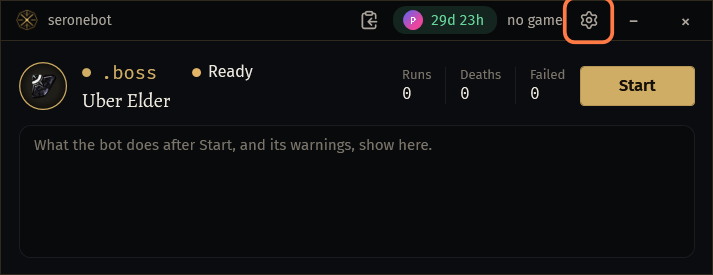
The small window
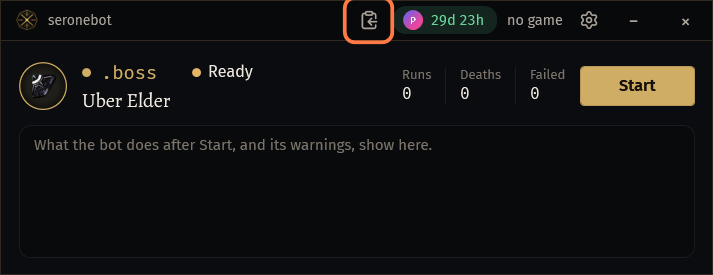
570 × 220The top line, right side: the clipboard (Copy log), the key's time and the gear (Settings). In the middle of the title bar: the game chip.
Under it the bot card: the bot's picture and name, its state (Stopped, Running), the time since Start, what it is set to, its counters and Start / Stop.
Under the card: the last lines of the log, one line each. A warning has a yellow sign, an error a red one. Point at a line to read it whole.
A bug icon with a dot comes next to the clipboard when seronebot thinks a bug report would help. Click it to send the report.
Click the gear to open the big window.
The big window
The big window has the menu on the left and the page of the open section on the right. Drag its edges to resize it.
- In a window narrower than 1150 px the menu shows only icons: point at one to see its name.
To go back to the small window, click the button next to minimize in the title bar (Compact window (570 × 220)).
The menu
Find at the top, or Ctrl+K: type a part of the name of a setting, a method or a section, and jump there.
Bot: the bots, each in its colour:
.boss,.map,.utility,.actbot,.followbot. Click one to pick it and open its page. Click Bot itself to fold the list down to the bot you picked.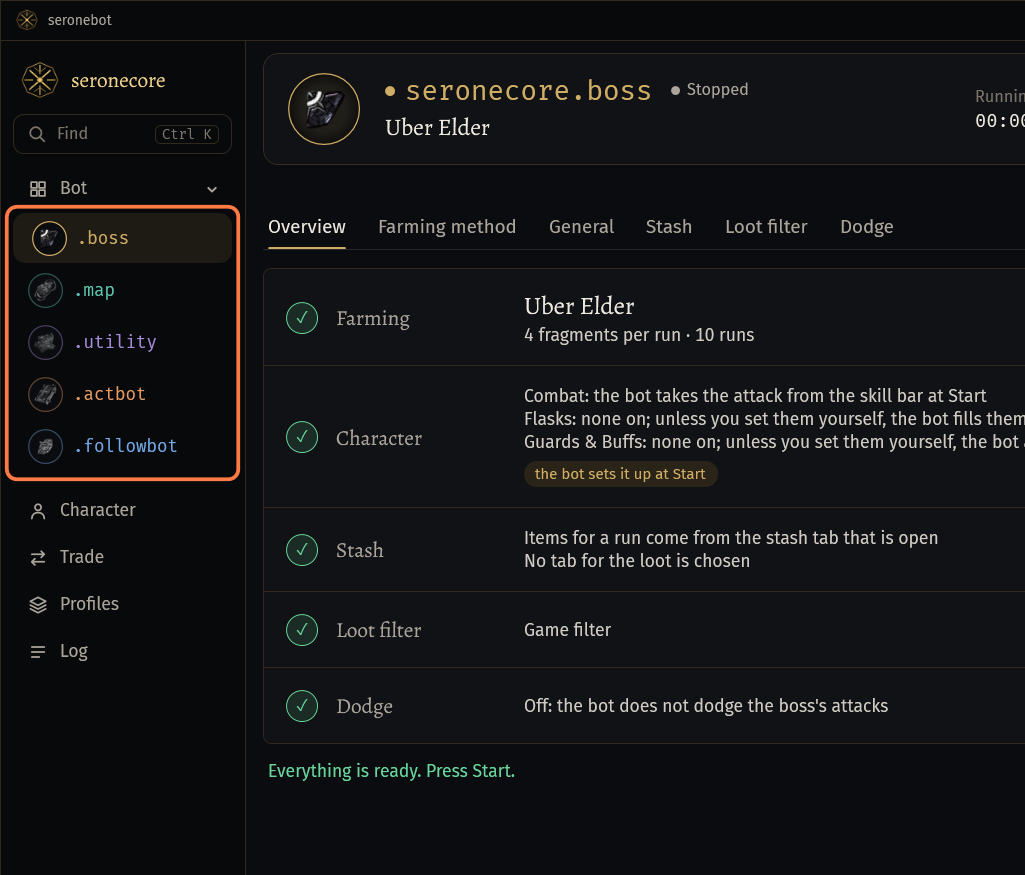
- Point at a bot's circle to see what it is set to.
- A green dot: the bot runs. A lock: your key does not include it.
- While a bot runs, only its own item works: stop it to pick another.
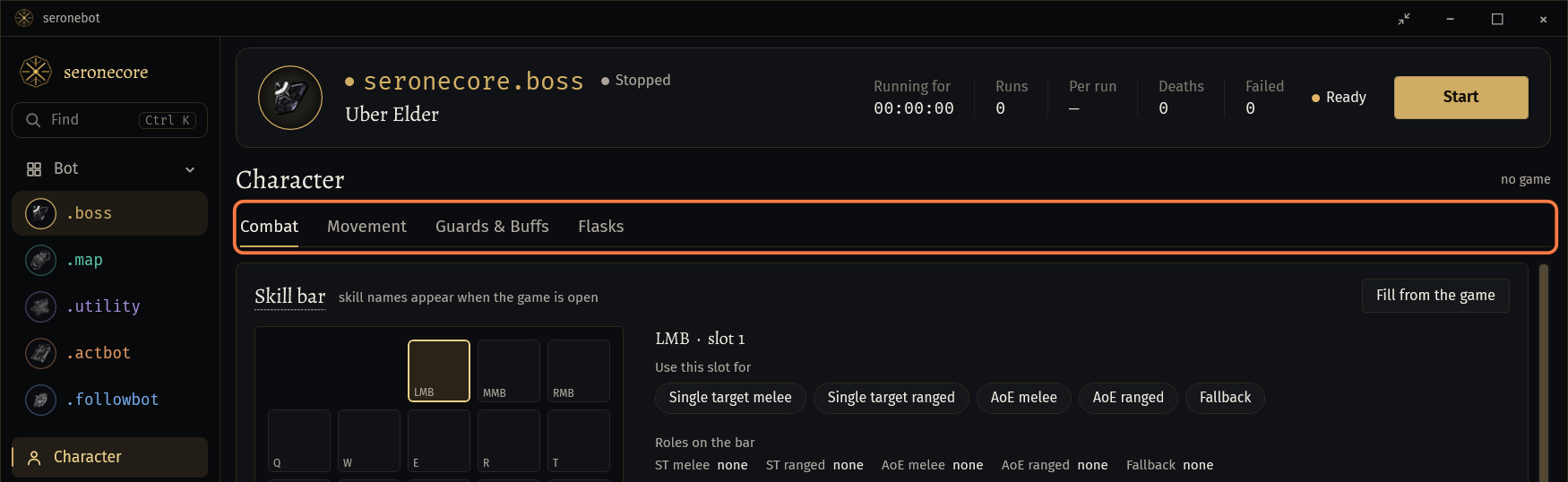
Character: the character's settings, as tabs over the page: Combat, Movement, and the Guards & Buffs and Flasks of the bot you picked.
Trade: what the bot buys and sells. It is dim when your key has no trade access.
Profiles: saved sets of the bot's settings.
Log: every line of this run. Under it Log folder, Copy log and Bug report.
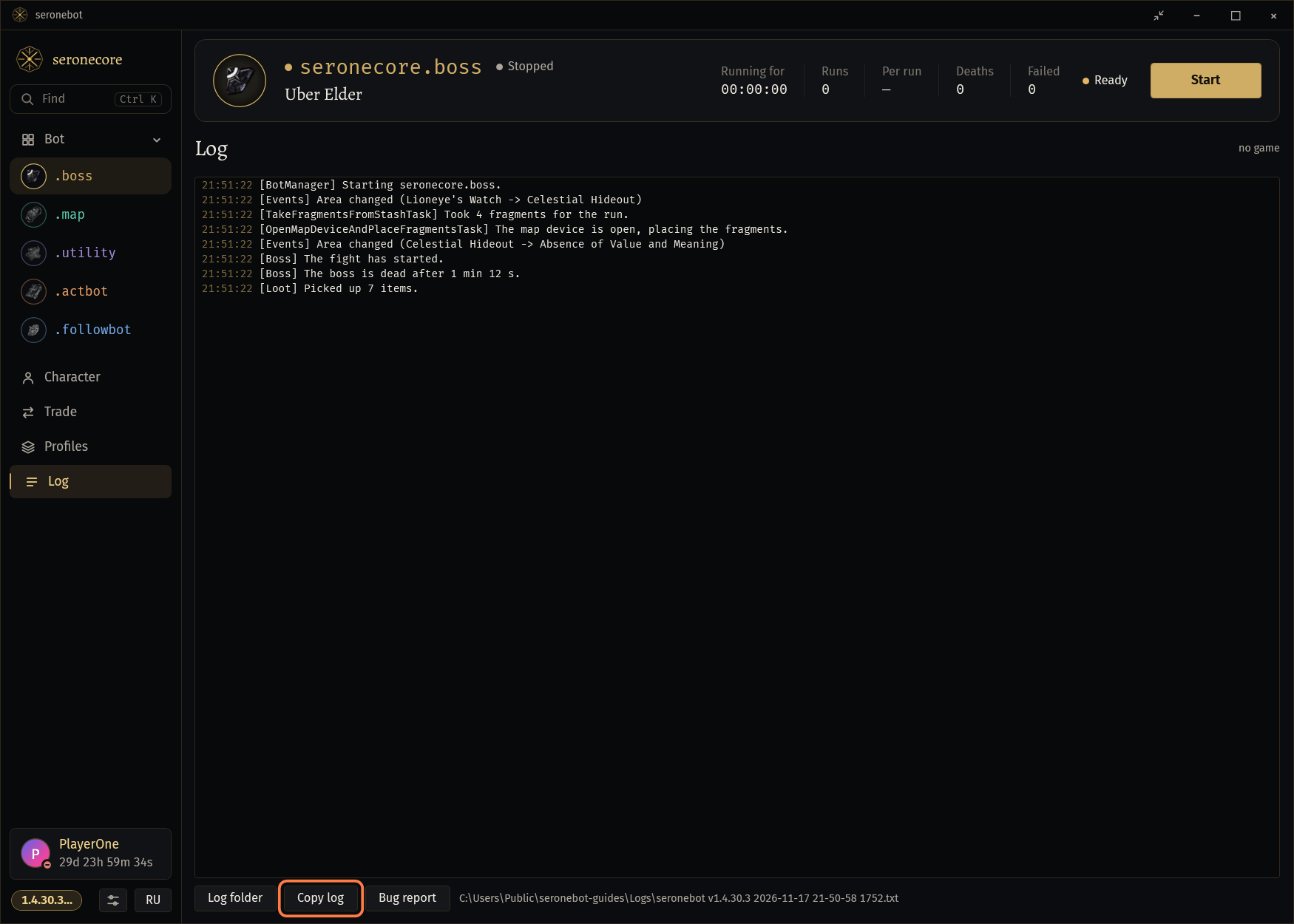
At the bottom: the key card, the version, the gear (Settings) and the language button.
- Click the version to read What's new in it again.
The bot card
Over every page of the big window: the card of the bot you picked, with its picture, name, state, what it is set to, its counters and Start.

The counters: Running for (the time since Start), Runs, Per run and Deaths. In the newest version the boss bot adds Failed: runs without the boss killed. The act bot shows Level and Deaths.
- The small window shows fewer of them: point at a number to see what it counts.
Next to Start: Ready, or Ready 3 of 5 when something is missing. Click it for the list Before Start.
Start turns into Stop while the bot runs. Grey Start with Activate the key first. in its tooltip: the key is not active. No access with a lock: the key does not include this bot or method.
The key card
The card at the bottom of the menu shows whose key it is (your Discord name and picture) and the time left, counting down.
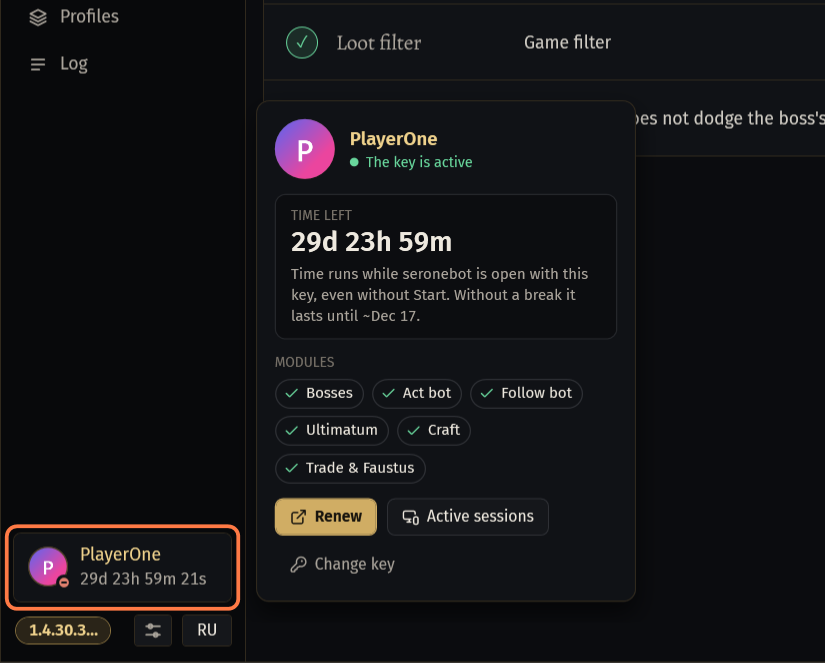
Click it to open the profile card: TIME LEFT, until when it lasts at the rate of now, MODULES, Renew, Active sessions and Change key.
- Renew and Active sessions open your dashboard on seronecore.com in the browser.
- Under a day left the card is yellow: Less than a day left.
No key, or the key is not active: the card has a red dot, says No key or The key is not active, and Enter. Click it to paste a key.
In the small window the key's time in the top line does the same: click it for the same card.
Russian or English
Click RU at the bottom of the menu to switch the window to Russian. In Russian the button says EN.
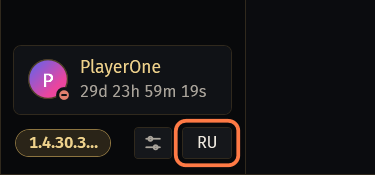
- seronebot starts in English and remembers your choice. The log lines stay in English.
Settings for every bot
Click the gear at the bottom of the menu. Settings has two tabs: General and Auto login.
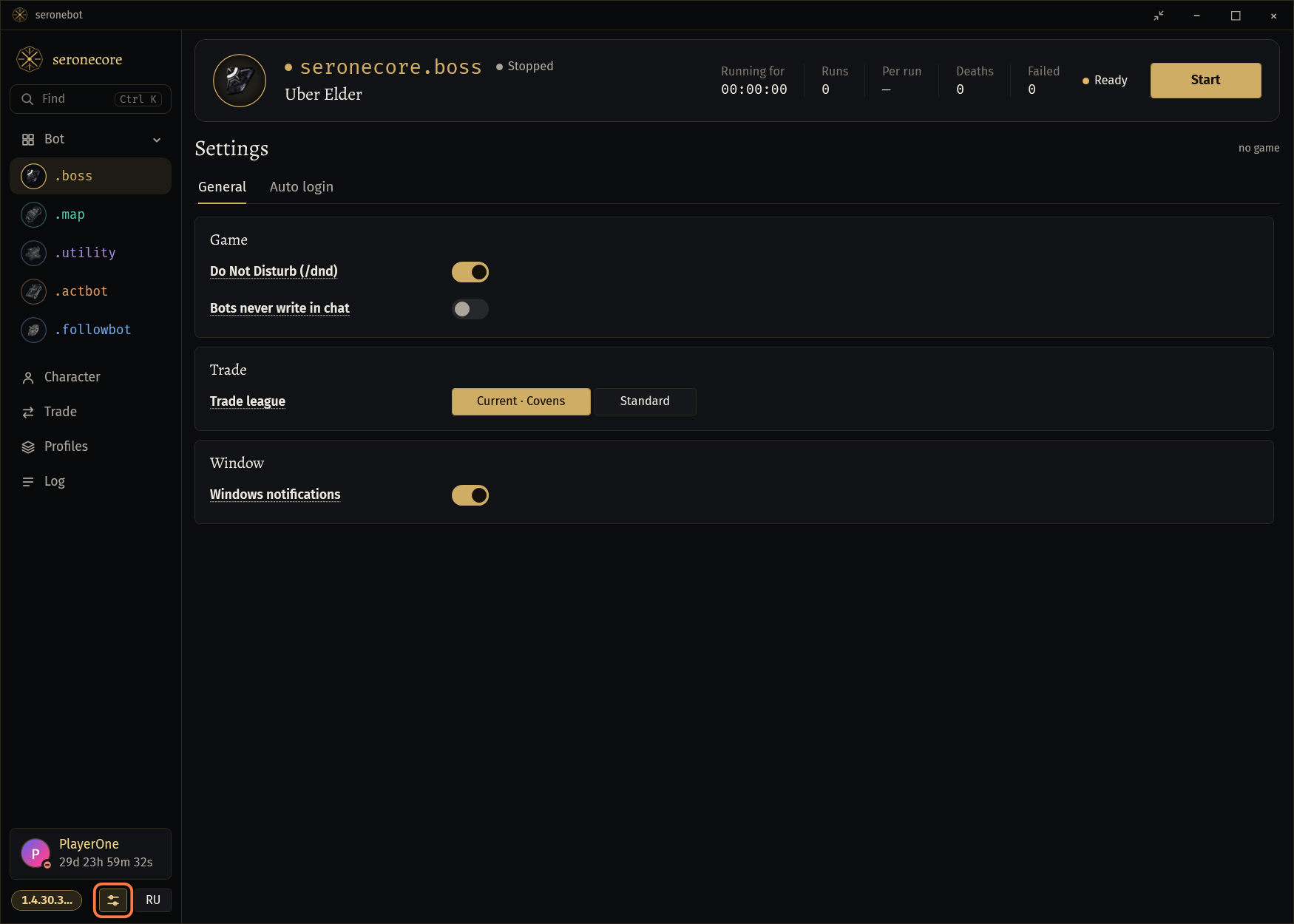
General: Do Not Disturb (/dnd) and Bots never write in chat under Game, Trade league under Trade, Windows notifications under Window. Point at a setting's name to read what it does.
The game chip
In the middle of the title bar: PoE with the number of the game's process, then the network latency and the game's FPS.
Click it to bring the game window to the front.
A green tick: the bot is checked on the game's league. An amber exclamation mark: the bot is not checked on that league yet. Point at the chip to read which league.
Point at the numbers for more: network latency, game FPS, bot tick, CPU and memory of seronebot.
- In the small window the chip gets shorter when there is no room.
Copy log
Click the clipboard in the top line of the small window, or Copy log on the Log page of the big window.
The card says The log is copied. Open Discord and press Ctrl+V in a message to the developer.
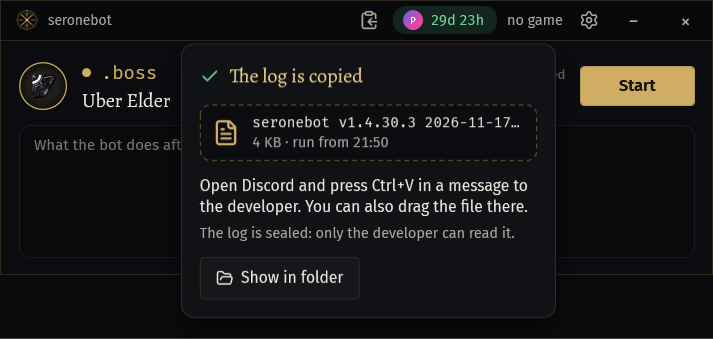
- The log is sealed: only the developer can read it.
- You can also drag the file from the card into Discord.
seronebot was started again after the problem? Click Previous run on the card: it copies the log of the run before.
If something goes wrong
What you see and what to do- The bot is running: stop it first to open another bot.
- Click Stop, then pick the other bot under Bot.
- Activate the key first.
- The key is not active. Click the key card (or the key's time in the small window), paste the key with Ctrl+V and click Activate.
- Another program holds the clipboard. Drag the file into Discord, or open its folder.
- Drag the file from the card into your Discord message, or click Show in folder and attach the file from there.
- The log could not be copied
- The log says why. Click Log folder on the Log page, take the file from there and send it yourself.
Stuck on a step?
Ask in #support on our Discord and send your log with Copy log: it shows what the bot saw.