Guide · Settings
Profiles: save, switch and share settings
A profile holds everything one bot needs: its own page, Combat and Movement. Save one for each method or build, switch between them in one click, and give one to a friend without your key or your login.
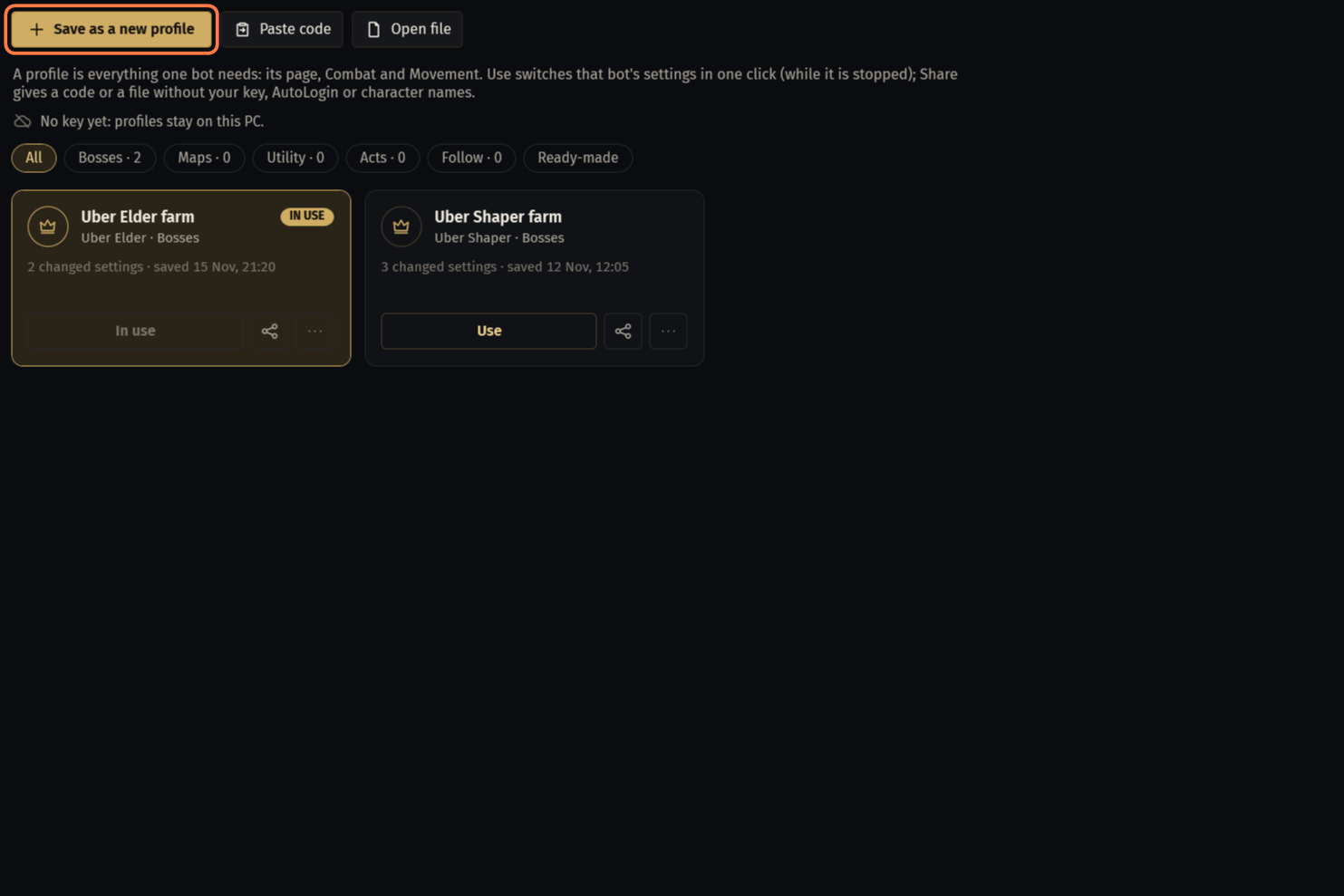
The Profiles page
Click Profiles in the menu.
On top: Save as a new profile, Paste code and Open file.
The pills show the cards of one bot: All, Bosses, Maps, Utility, Acts, Follow and Ready-made.
A card shows the name, the method and the bot, how many settings differ from a fresh install and when it was saved. The card a bot uses now has IN USE.
- A cloud on the card: the profile is kept on seronecore.com under your key too. The line under the description says when the page last synced; Sync now syncs at once.
- Without a key, profiles stay on this PC only: No key yet: profiles stay on this PC.
Ready-made: profiles the author of seronecore checked for a method. Take makes one your own profile; then Use it.
Save a profile
Set the bot up the way you want it: its page, Combat, Movement, Guards & Buffs, Flasks, Trade.
Click Save as a new profile. Bot has the bot you picked; Name suggests the method and the date. Type your own name if you like.
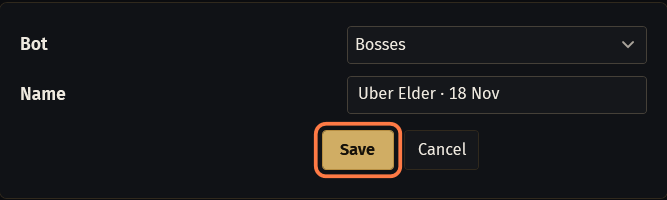
Click Save. The card comes up as the profile in use for that bot.
Switch to another profile
Stop the bot: profiles switch only while it is stopped.
Click Use on the card. The bot's page, Combat and Movement take the settings of the profile at once.
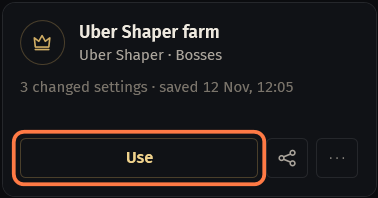
- A note at the bottom says so, with Undo: it brings back the settings from before the switch.
Combat and Movement are one for all bots: a profile of one bot changes them for the others too.
Changed a setting after that? The card in use says Changed since it was saved, and its button turns from In use into Save changes. Click it to put the settings the bot has now into the profile.
More (the dots) → Overwrite with the current settings does the same on any card; that profile is then the one in use. Undo in the note brings the old content back.
The menu also has Rename, Duplicate, Copy code, Save as file… and Delete.
An act bot profile keeps its own PoB build, and its card says which (PoB build: Chieftain, for example). A build you load later stays out of the profile until you click Save changes or save it as a new profile.
Take a profile from a friend
Copy the code your friend sent, then click Paste code. A code on the clipboard is checked at once.
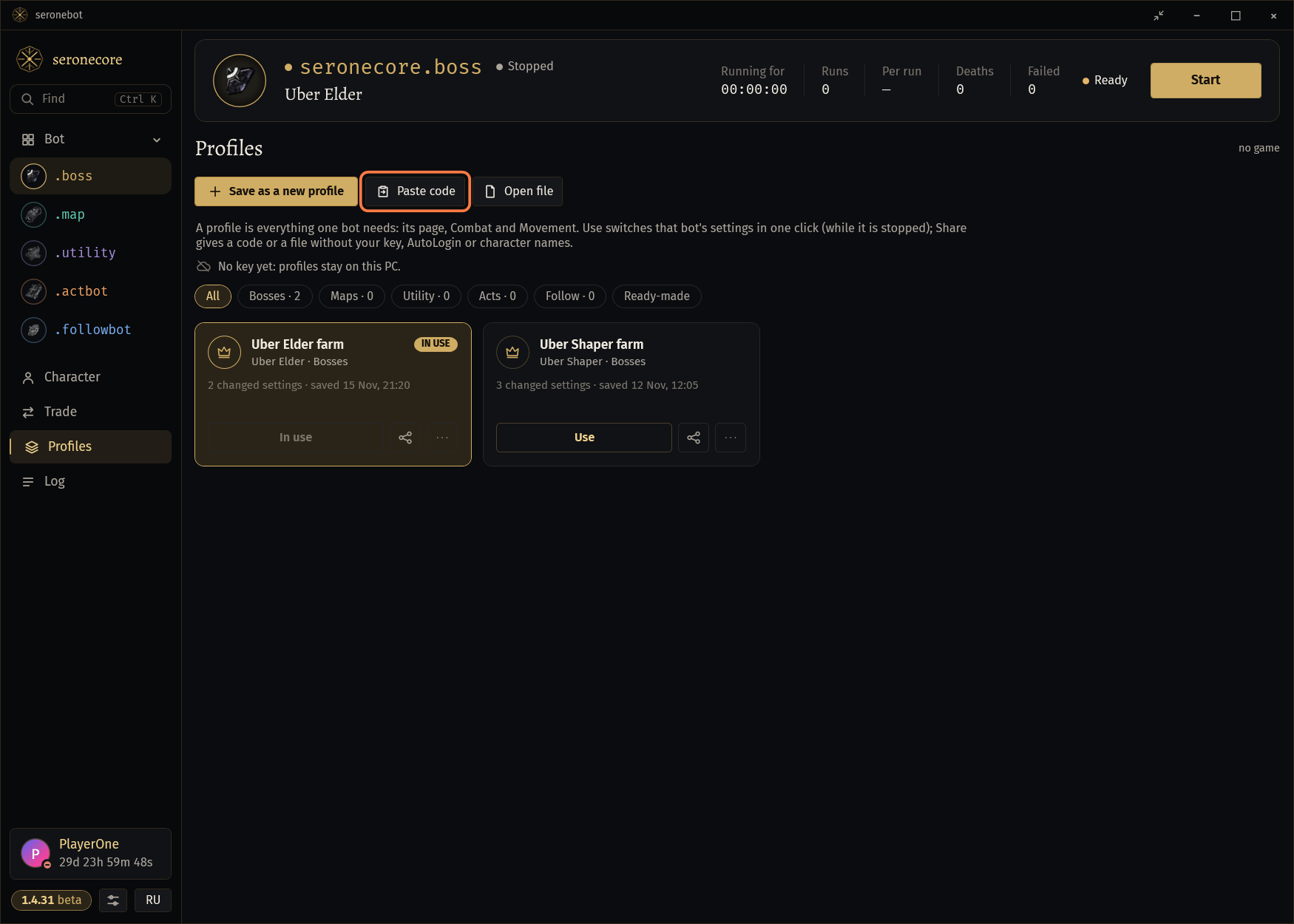
- A file: click Open file, or Open file… in the window, and choose the
.socprofilefile.
- A file: click Open file, or Open file… in the window, and choose the
What will change · untick what you want to keep: each part with how many settings it changes. Untick a part to keep your own; Stash tab names are off.
Choose Save as a new profile (nothing you use now changes) or Apply to the Bosses settings now (the bot must be stopped; your settings are kept for Undo), then click Import.
Your key, your login and your character names stay yours: a profile never brings them.
Profiles in SOCMultiPoE
In SOCMultiPoE open a profile, tab Bot and login, and choose the profile in SerOneCore profile:. The list shows the profiles kept under your key.
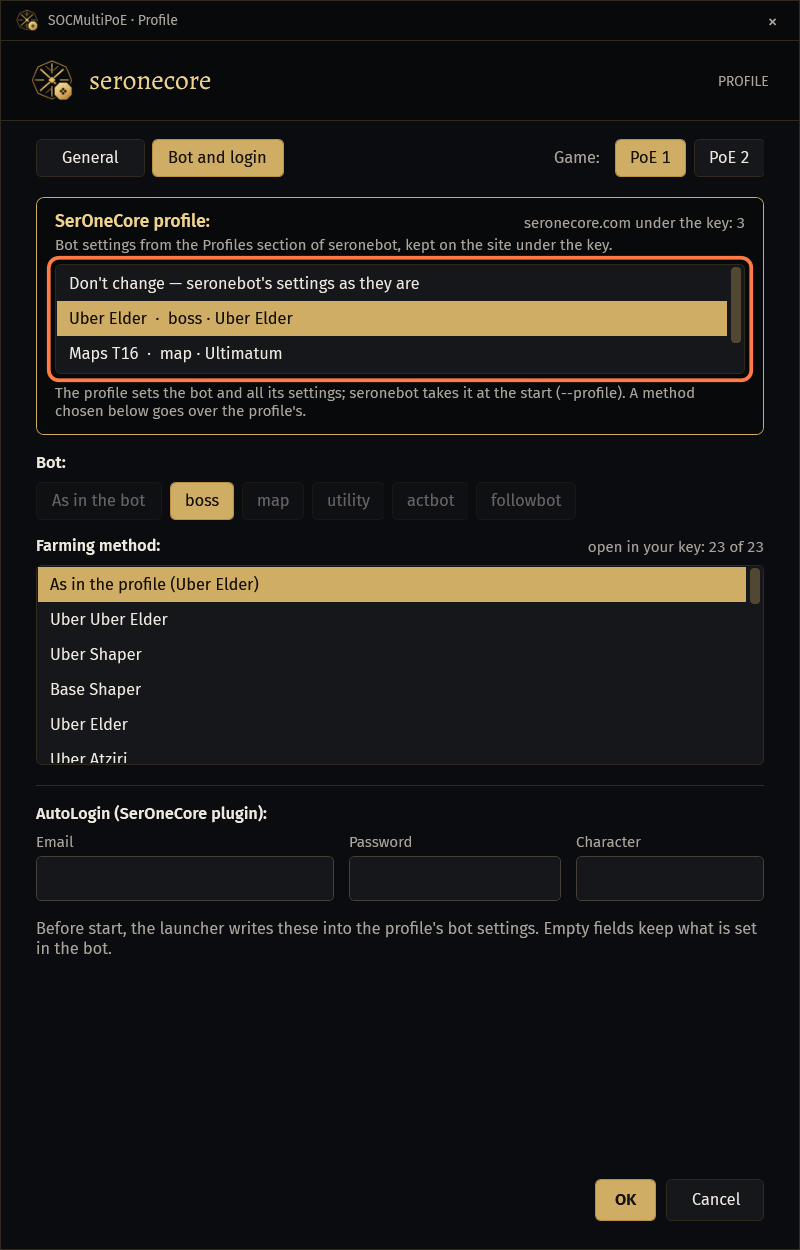
The launcher starts seronebot with that profile in use. More in SOCMultiPoE: run several game windows.
Two words, two things: a SOCMultiPoE profile is one copy of the game, usually one account. A profile of seronebot is a set of bot settings.
What a profile does not hold
Your key and Auto login (e-mail, password, character, gateway): they stay on each PC.
The Settings page (the gear): Do Not Disturb (/dnd), Bots never write in chat, Trade league, Windows notifications.
Quest progress and the places of the windows.
FollowBot profiles
Follow profiles hold the FollowBot page and the act bot settings FollowBot runs on: the act profile and the PoB build. Use on one changes the Acts settings too.
The name of the leader stays in your profile but never goes into a code: your friend keeps their own leader.
If something goes wrong
What you see and what to do- Stop the bot to switch profiles.
- Click Stop, then Use on the card.
- This is not a seronecore profile code. A code starts with SOC1-.
- Copy the whole code, from
SOC1-to its last character, and click Paste code again. - The code is damaged or cut short. Copy it again, the whole of it.
- A long message may have been cut. Ask your friend for the
.socprofilefile and open it with Open file. - The code was made by a newer seronecore. Update seronebot and paste it again.
- Your seronebot is older than your friend's. Let it update (it restarts into the new version at the next stop of the bot) and paste the code again.
- The server keeps at most 100 profiles. Delete some to keep new ones there.
- Delete the profiles you no longer need (More → Delete). The new ones go up at the next sync.
Stuck on a step?
Ask in #support on our Discord and send your log with Copy log: it shows what the bot saw.